

Is this possible, or will I need a programme like illustrator? If it's possible can someone please explain how (in laymans terms, please)
Results 1 to 3 of 3
Thread: Using vector images in Photoshop
-
06-29-2012, 08:28 AM #1Member


- Join Date
- Jun 2012
- Posts
- 12
- Thanks
- 0
- Thanked 1 Time in 1 Post
- Rep Power
- 0
 Using vector images in Photoshop
-
07-06-2012, 08:09 PM #2

- Join Date
- Nov 2011
- Posts
- 0
- Thanks
- 352
- Thanked 11,100 Times in 644 Posts
- Rep Power
- 0

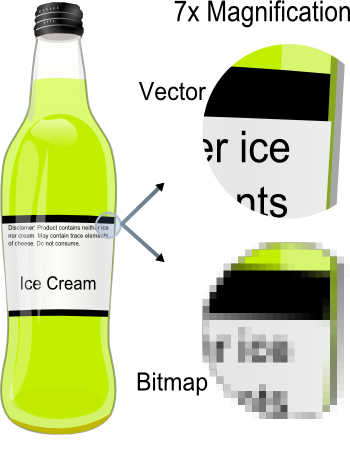
Vector-based graphics types such as SVG (Scalable Vector Graphics) are the highest resolution 2D graphics available for the artist to create and manipulate. Rastor-based graphics formats such as JPEG, GIF and PNG are based on pixel color values. Vector-based formats consist of a shape that is defined by anchor points which comprise the solid object along a defined path. As a result, vector imagery loses no quality by zooming in or out on the photograph when viewing or manipulating the photograph. Adobe Photoshop has the ability for the user to manipulate vector graphics. The primary tools for you to use for Vector image manipulation in Adobe Photoshop are the following: 1 - The Pen Tool, 2 - The Path Selection Tool, and 3 - The Shape Tool.
Creating vector graphics in Photoshop can take a few attempts before achieving the desired effect for the new user.
1. Load a 2D Image into Photoshop for manipulation with the vector tools by selecting the "File, Open File" menu option. Once the image is loaded, save the image in Photoshop PSD format by choosing the menu option "File." then "Save As."
2. Double click on the image in the Layer tool bar to unlock the single image layer which will create a new Image layer that is a copy of the original picture. The Layer tool bar is located at the bottom-right side of the Adobe Photoshop application. Right click the new layer and type a unique layer title.
3. Choose the "Pen Tool" from the tool bar and create an outline of the object in the 2D image by clicking on major outline points of the shape. Each click will create an anchor point around the image. When complete with creating anchor points about the image connect the final anchor point so it meets with the first created.
4. Choose the "Convert Anchor Point Tool" and wrap the areas which require more curves to fit the original shape of the 2D image. If there are extraneous anchor points, then delete by selecting the point and pressing the "Delete" key on your computer.
5. Repeat the path creation process for each major shape in the 2D image to convert to vector format. When creating new vector paths, select the "Color Picker" tool first in order to use the same color as the component of the shape being traced in the Vector trace. Each component of the original raster image will need a vector path defined and converted in order to completely convert the raster image to vector format.
6.Select the "Save As sub-menu in the 'File' menu options and view your new Vector graphic. For saving to use on the Internet, SVG is the preferred vector format for 2D web graphics.
From now on, to be able to see & click the download link, you have to hit the THANK YOU button before.....you may need to refresh the page.
[SIGPIC][/SIGPIC]
-
-
05-29-2013, 11:59 AM #3Junior Member
- Join Date
- Oct 2012
- Posts
- 3
- Thanks
- 147
- Thanked 1 Time in 1 Post
- Rep Power
- 0
Gosh, thanks for such a great tutorial. You make it so clear, I might actually try this.
-
The Following User Says Thank You to Domino For This Useful Post:
elabarley (09-20-2018)

 Reply With Quote
Thread Information
Users Browsing this Thread
There are currently 1 users browsing this thread. (0 members and 1 guests)
 Posting Permissions
- You may not post new threads
- You may not post replies
- You may not post attachments
- You may not edit your posts